Advanced Plotting
Multiple Lines
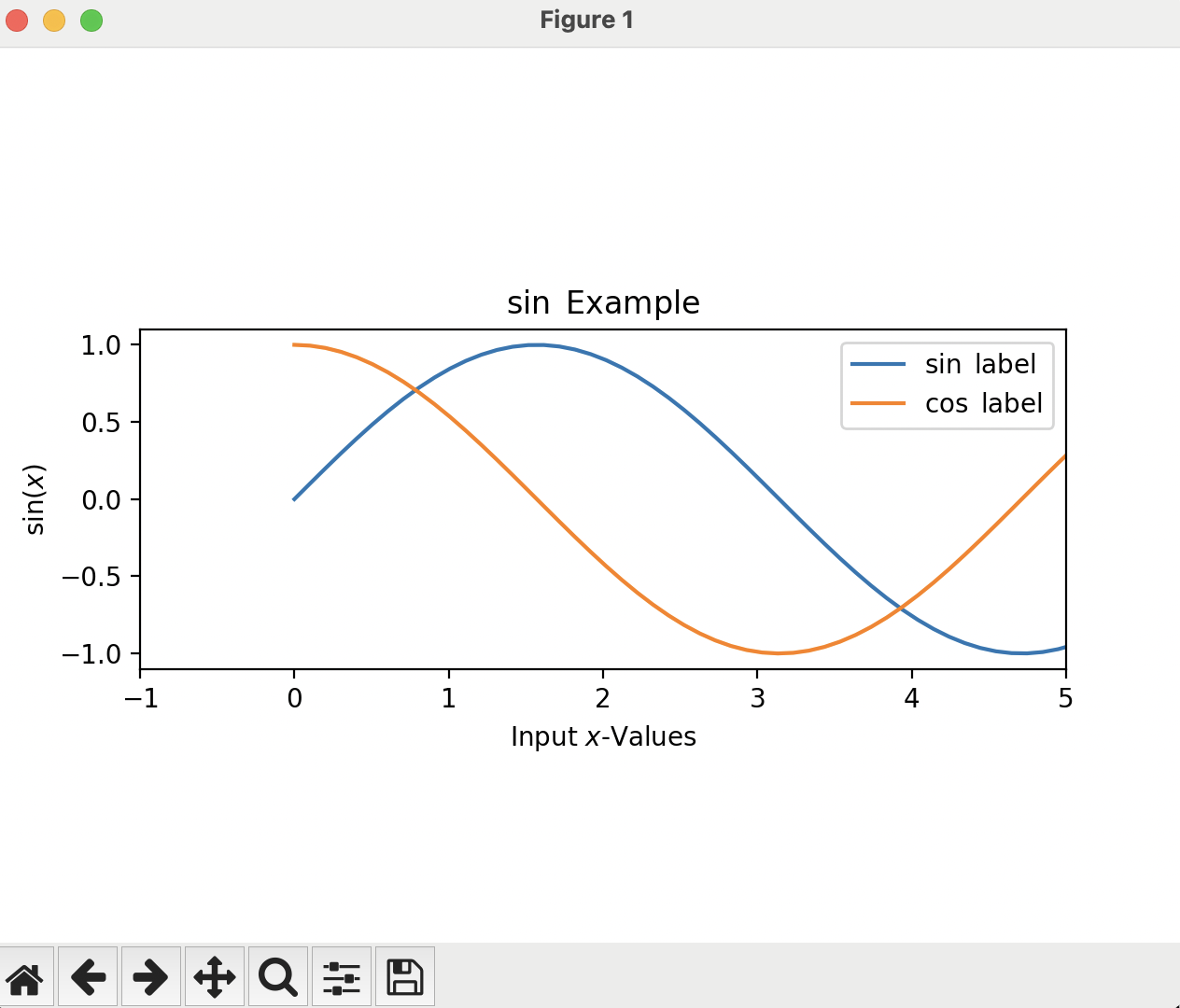
What if you want to show multiple datasets on the same figure? Simply add another ax.plot() call.
Duplicate your sine_plot.py script and name it to be multi_line.py. We will work in this new script in this section.
After we generate our first set of y-values, we are going to generate another set of y-values for our second line, using the cos function:
ax.plot() invocation, but before the plt.show(), add this line:
Your new script should look like this:
Styling Lines
What if we do not like the default colors or styles of the lines? We can change them! This styling is done at plotting time, instead of when the figure is created. It is accomplished through styling strings. There are three main options we may be concerned with:
- Markers
- Color
- Line style
We have already seen the first one when we were debugging the first Sine Plot. It can set the style of the markers used at each of the points plotted. There are many marker styles available, which can be found here.
The color is similarly implemented: we add an option named color to the ax.plot() command. This also has many options available to it, including most common colors.
Lastly, line style controls how the line is displayed. This option is notated as linestyle. There are four main styles, with the option to parameterize your own style as well. The four options are:
- Solid
- Dotted
- Dashed
- Dash dot
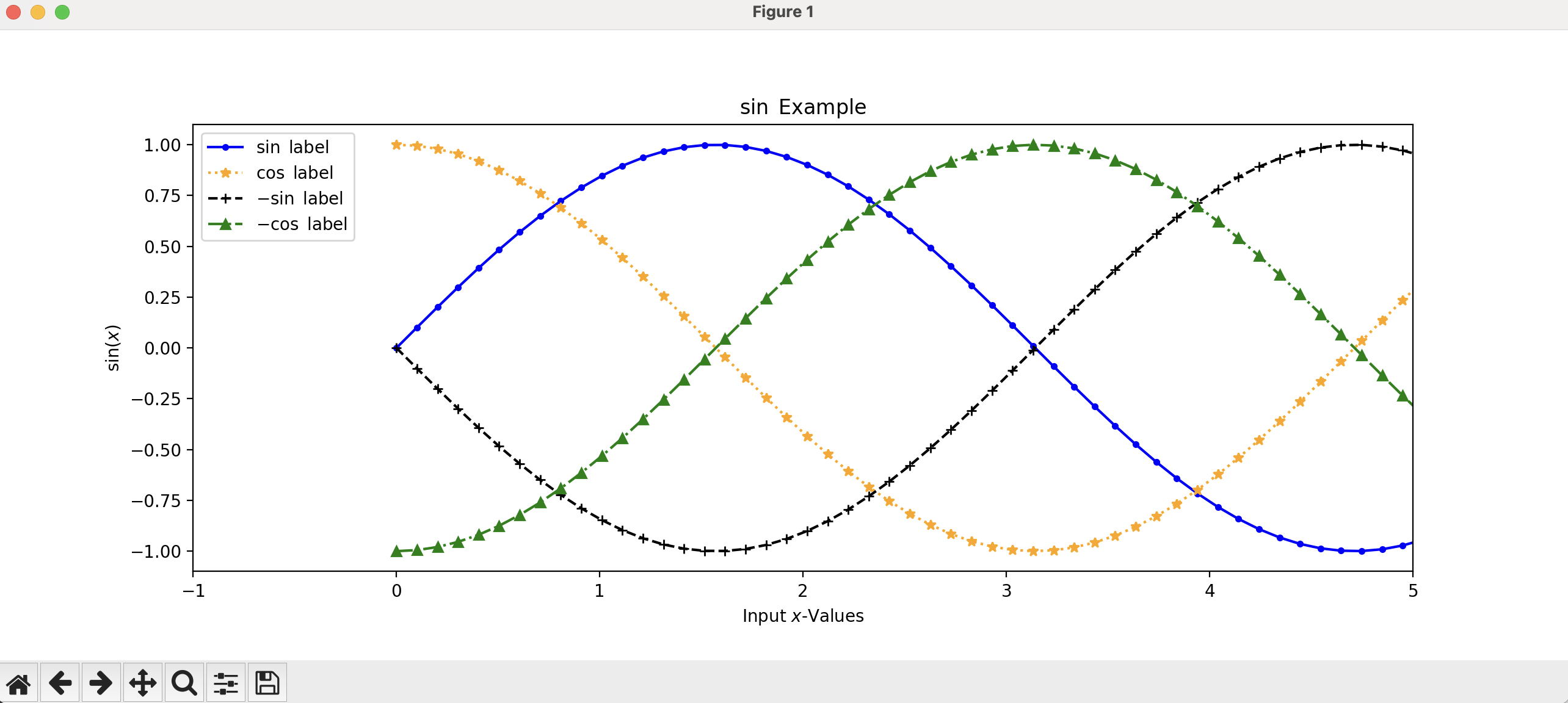
Here is the plot invocations for four lines using different stylings for each one:
If you add these to your multi_line.py file, you will get a plot that looks like this:
Notice
Notice that I resized the plot window to get it to look nicer, as the default layout had the legend overlaying the lines.
Multiple Plots
What if you had lines that you wanted to put on different axes? We can do that! To do this, create a new script named Multi_plot.py. Start by adding the import statements to the top:
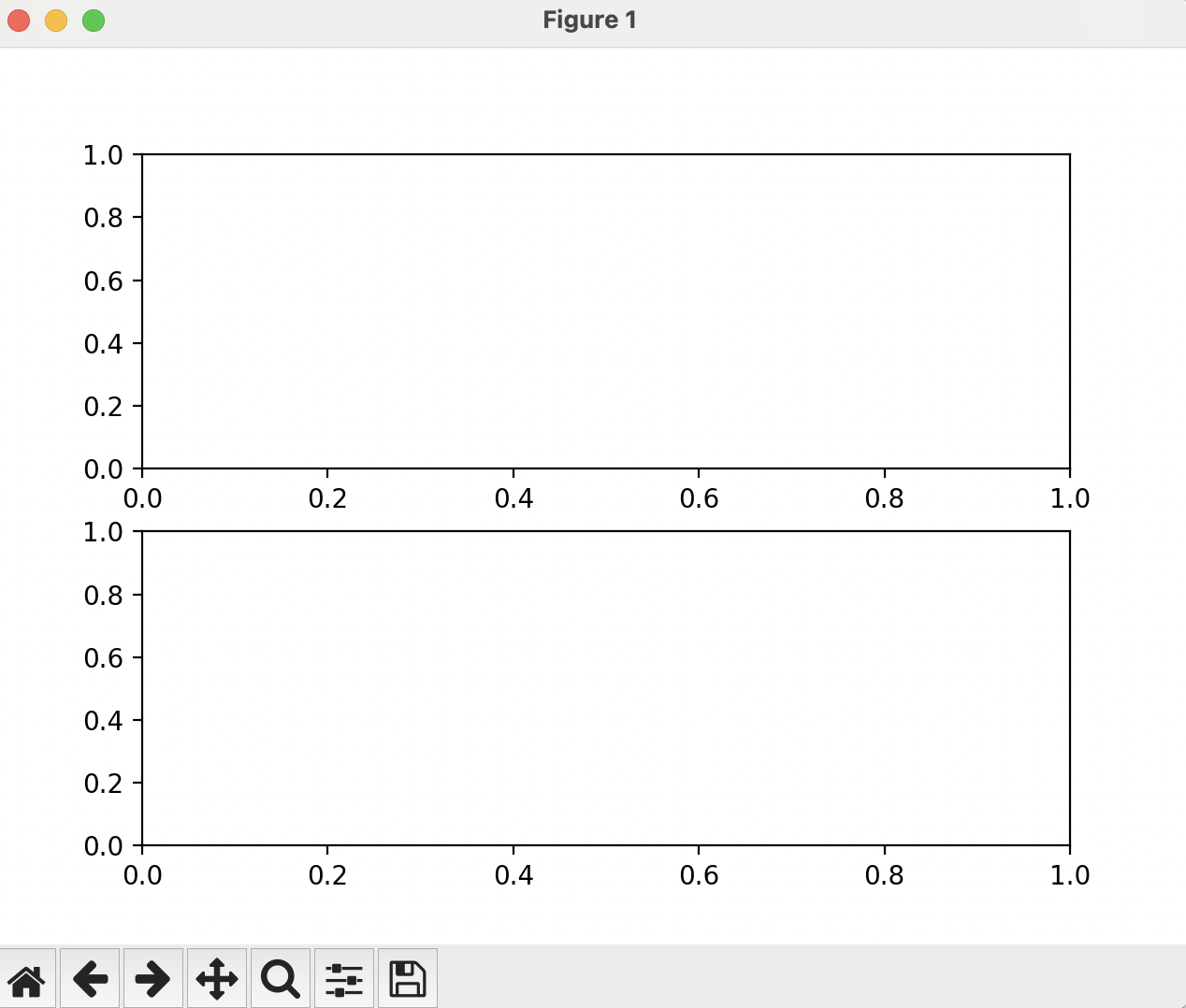
We can implement multiple axes when we create the figure in the first place. We do this by passing two numbers to the plt.subplots() function:
The first number is the number of vertical plots, and the second number is the number of horizontal plots. By default, if we do not pass anything to the function, it assumes one in each direction, leading to a single plot. Notice as well the parentheses around the two axes. This is how plt.subplots() returns the axes, as a list. We could also just assign the axes to a list object and access the different parts via indices, but it is better practice to label each variable holding each axes object.
Add a plt.show() to the end without putting any data in to see the formation of the plots. So your Multi_plot.py script should look like this:
If we run it from the terminal (python Multi_plot.py), it will result in a figure that looks like this:
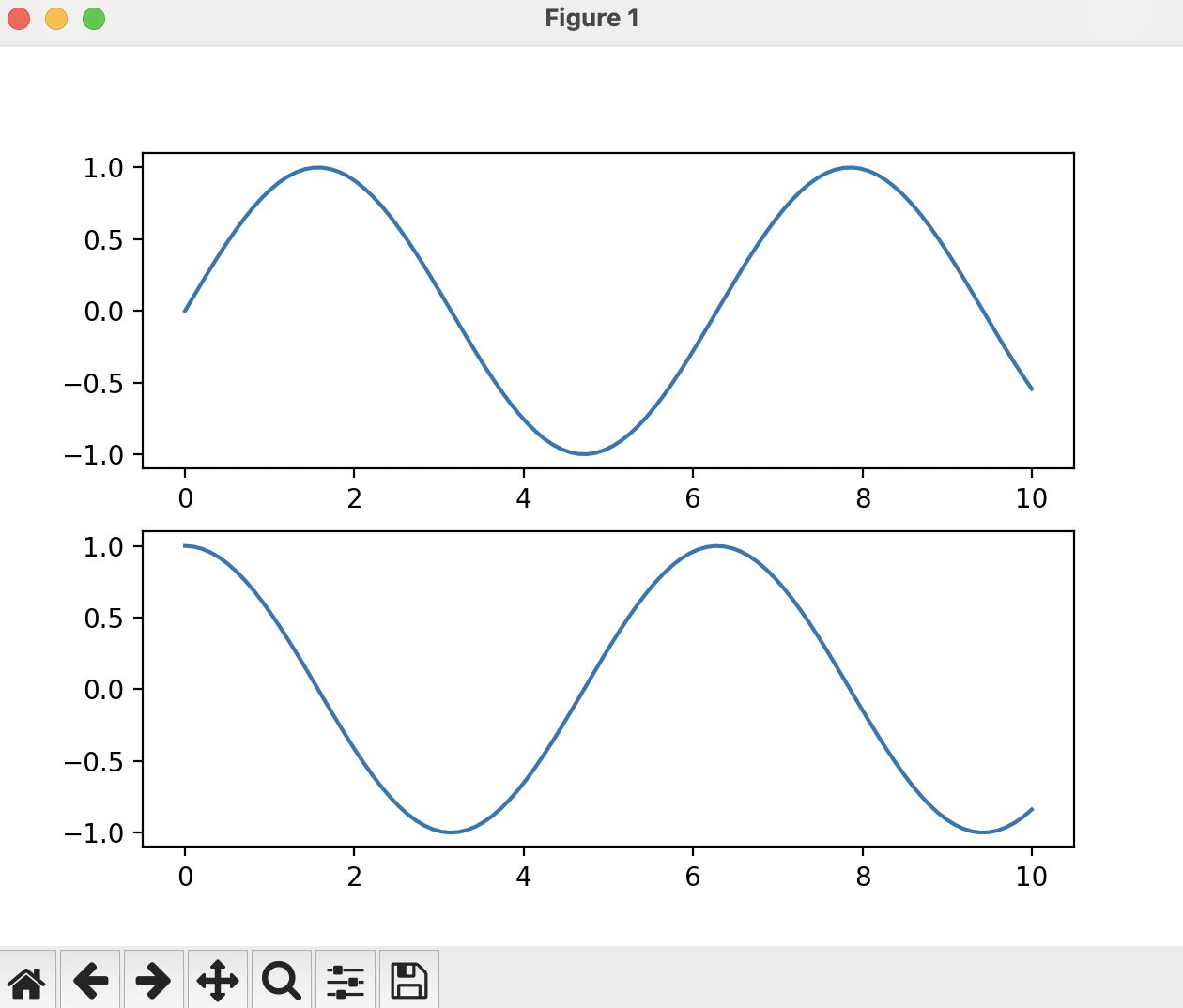
If we want to add data to each of the axes, we can simply do top_axes.plot() and bottom_axes.plot() commands. If we generate the data as we did before, our script would look like this:
python Multi_plot.py in the terminal, it gives us a figure that looks like this:
Now, what if we switch the two and the one in the plt.subplots() function? And get rid of the data and the plotting parts of the script:
It stacks the plots horizontally, instead of vertically, like so:
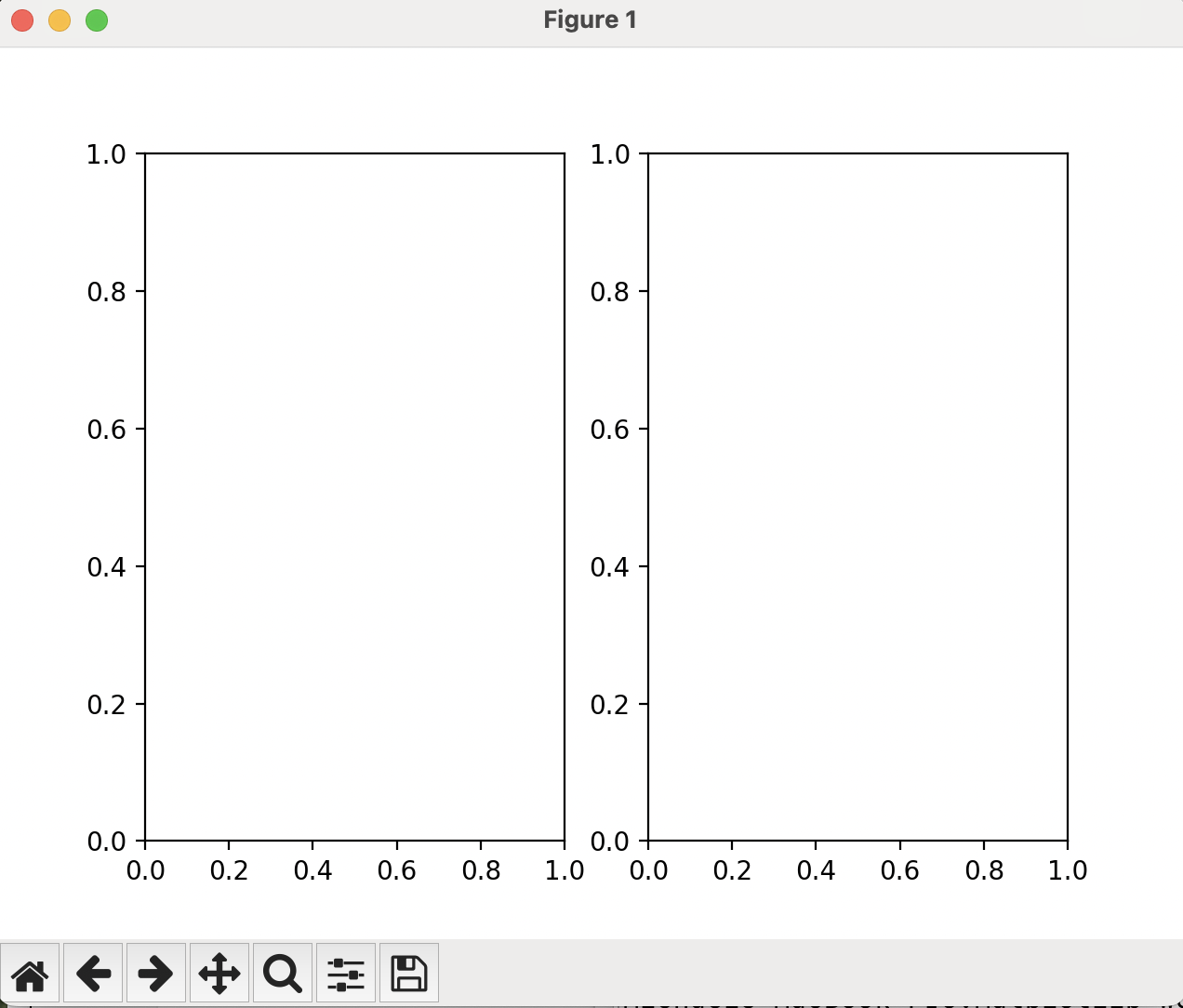
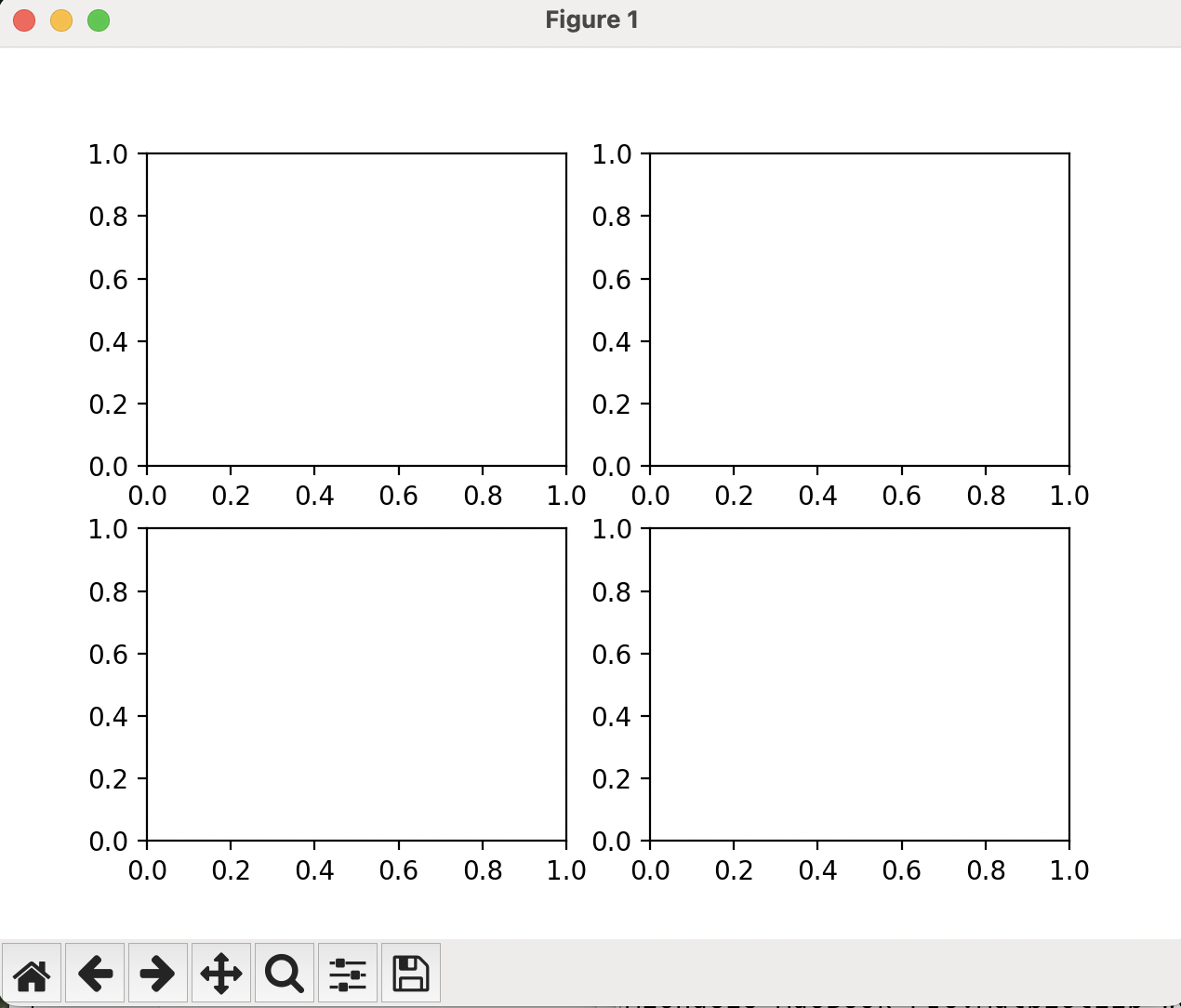
Now, what if we want to have four plots, how would we format the command?
It gives us a figure that looks like this:
Sharing Axes
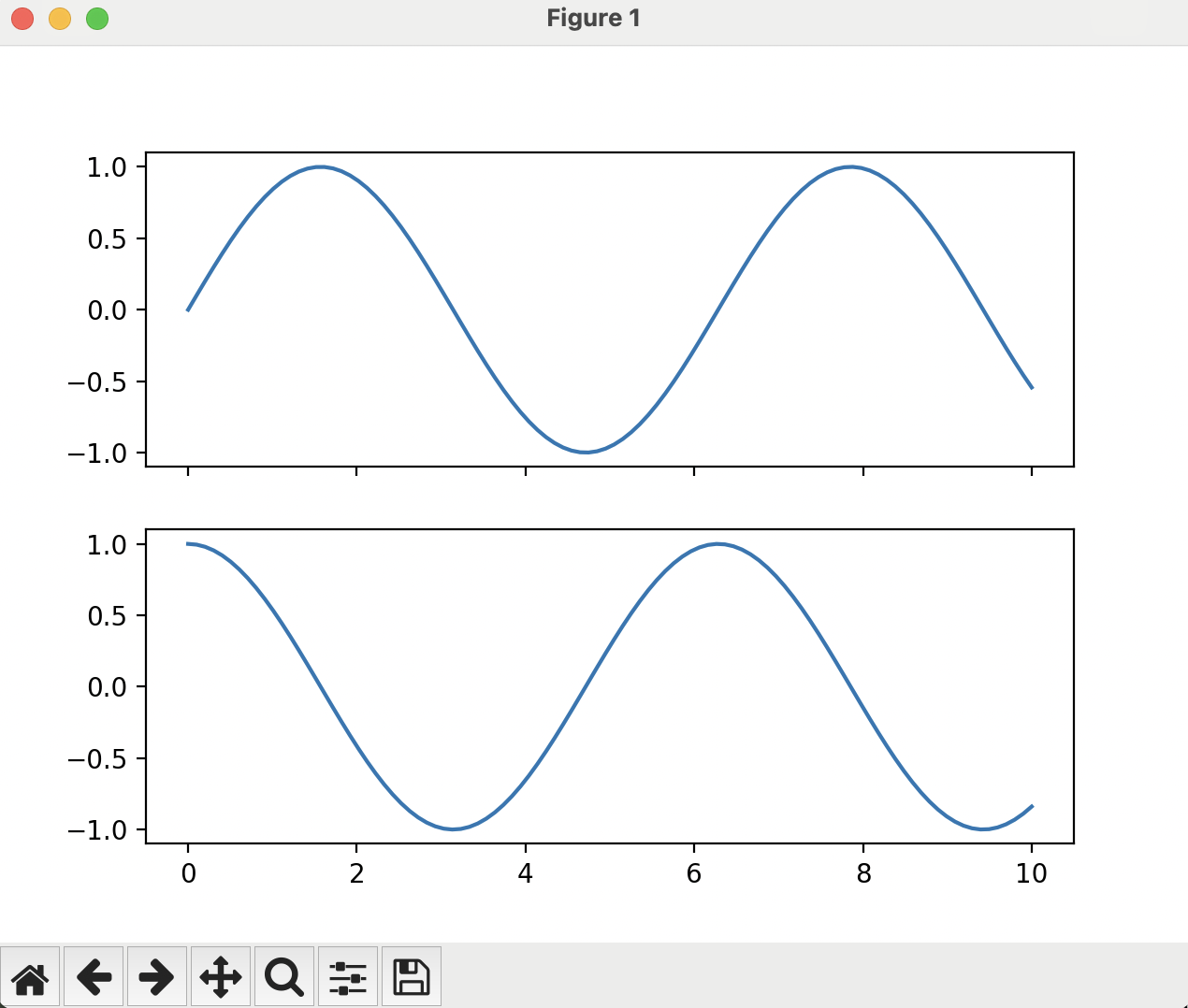
There are times where you want plots to have the x- or y-axis span the same amount as other plots you have in your figure. You can do this using the sharex=True and sharey=True options passed to the plt.subplots() function. The invocation could look like this:
Note that the only change is in the fourth line, where we add the sharex=True option to the invocation. If you run this script, try manipulating one of the plots and see what happens. The resultant figure is shown here:
Non-uniform Layouts
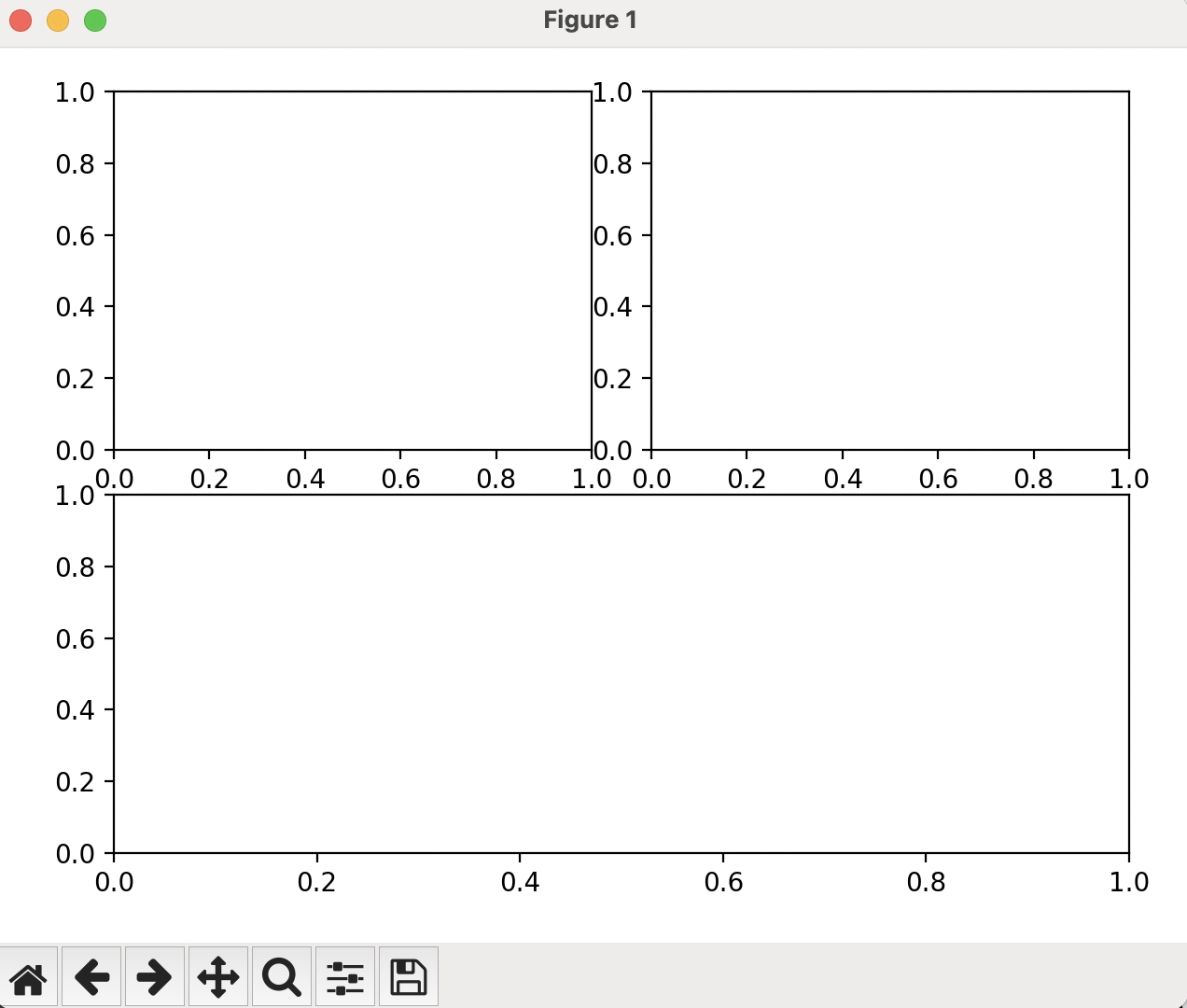
What if we want non-uniorm layouts? Like a figure with two plots on the top and a plot that spans across the bottom? We can use the fig.add_axes() function:
The first two numbers in the list passed to fig.add_axes() are the lower left x-y coordinate in terms of the fraction of the whole figure (i.e. the number should span between 0 and 1). The next two numbers are the width and the height (respectively) of the added axes (also in terms of fraction of the figure). The reason that these are not 0, 0.5, and 1 is that the axes need space for the tick labels (the numbers by the axes). If we run this new configuration of Multi_plot.py, we get a plot that looks like this:
Here, to add data to the plots, we would utilize what is called a Python "dictionary". A dictionary in Python is a set of key-value pairs. To access the values, you index the dictionary by the key. The axes variable in the latest configuration is already a dictionary, which you can tell by the curly braces and the colons. The curly braces bookend the set of values, and the colon delimits what the key-value pair is. So, to access the bottom axes, we would use the command: axes["bottom"]. From there we could plot, or add limits, labels, or whatever else we desire. Here is an example script that uses the fig.add_axes() function:
When we run this from the terminal, it results in a figure that looks like this:
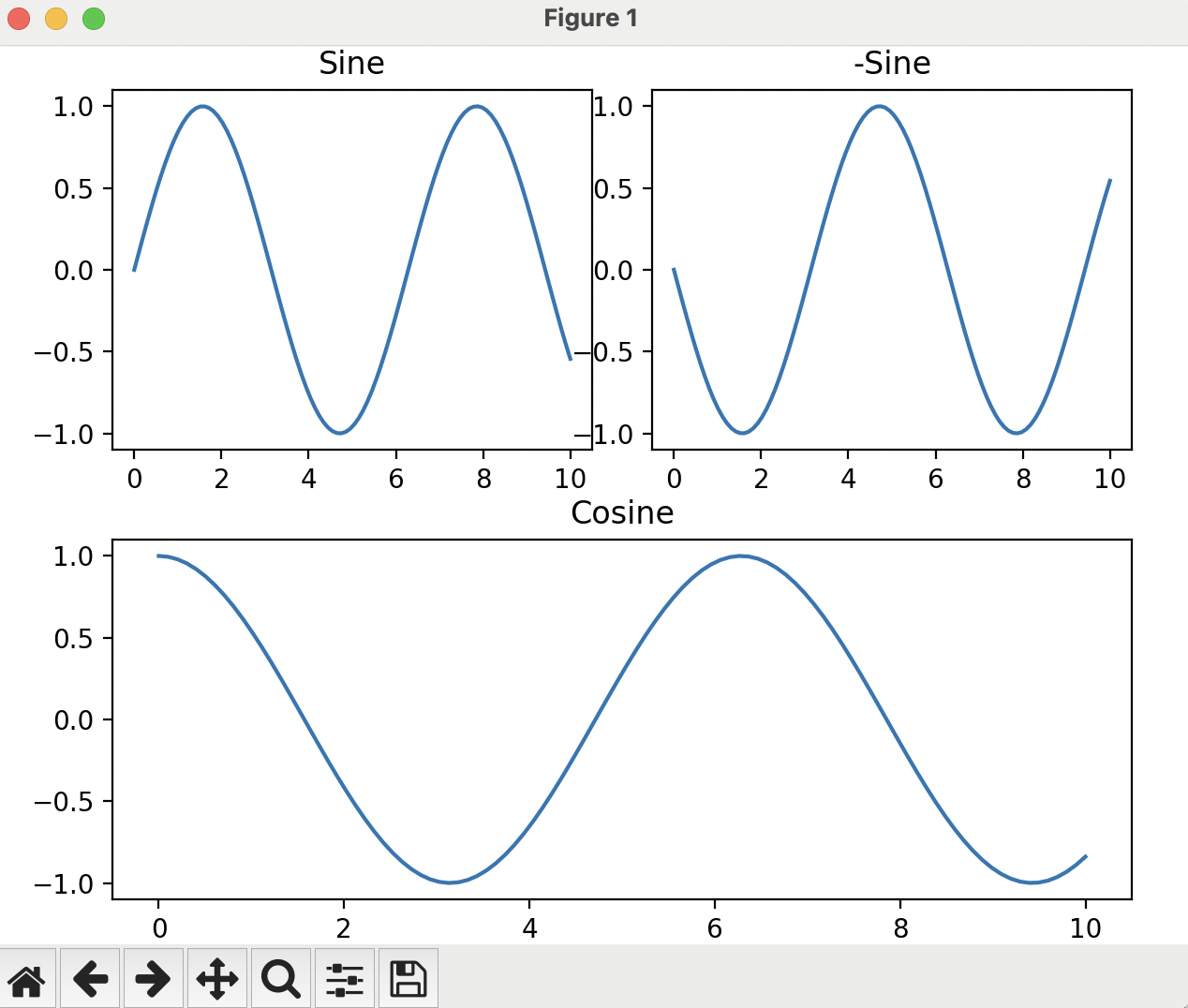
Notice that in this one, the titles are for each axes, not for the entire figure. Also, notice that some of the tick labels of the upper right plot overlap the plot in the top left. Try playing with the fig.add_axes() numbers until it looks better.
Saving Plots
Up to this point, we have been interactively viewing the plots as we generate them. However, when we close out of the window, they are gone forever (until we run the script again). What if we want to save the plots to a file to have a reproducible view of the plot to put into, say, a paper? There is a simple command for that:
Simply replace the plt.show() in the script with the plt.savefig() function and it will save the file to the same directory the script is in. It supports many options as well as many file types, but for now, saving as a PNG is sufficient for our needs.
Of note, saving a figure does not clear it from memory, so if you save an intermediate figure, you can still plot more on top of it. If you do need to clear a figure of data, use the plt.clf() function.
In the next section, we will discuss different types of plots and how to use them: