Cluster Job Submission (Slurm)
In this section, we will talk about how you can interact with the scheduler to submit jobs to the cluster
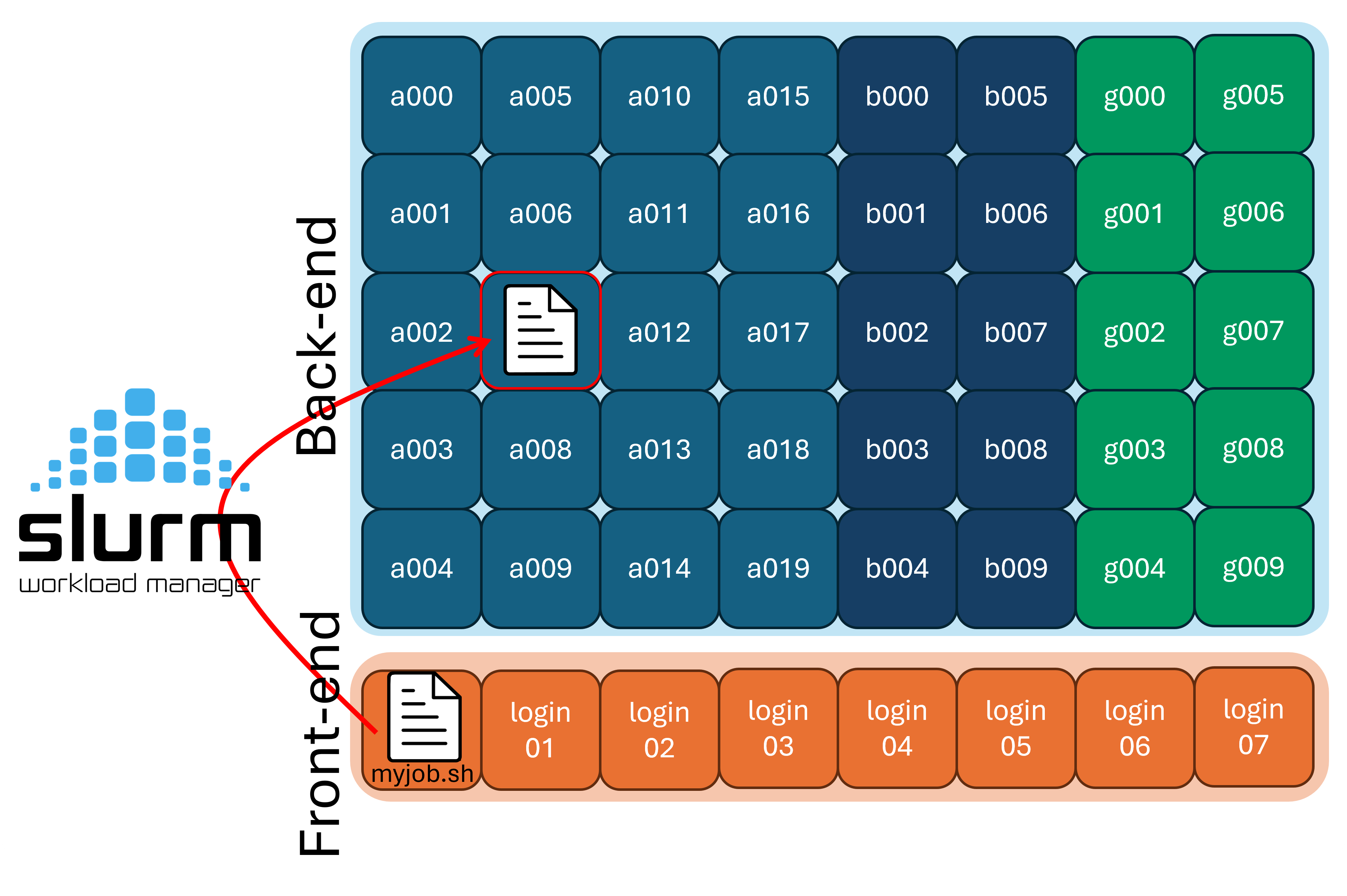
A scheduler is software that manages how computing resources are shared among users. At RCAC, we use Slurm, the most widely used scheduler at major computing centers.
Because there are a limited number of compute nodes and many users submitting jobs, the scheduler is responsible for deciding when and where each job runs. It tracks resource requests (such as CPUs, GPUs, memory, and time limits), queues, jobs, and launches them when the requested resources become available.
Run Types
Before we get started with how to run jobs on the compute nodes, we should talk about the two paradigms of running code on a supercomputer:
-
Batch mode
-
Interactively
In the batch paradigm, you write your code, and then submit one (or many) instances of your code using the scheduler and it can run on arbitrarily many nodes without worry of interruption.
In the interactive paradigm, you get a session on a compute node (using the gateway, ssh, or ThinLinc), and the run your code directly. However, if your network drops, your code could be interrupted.
Batch Scripts
Users submit their work to Slurm in the form of batch job scripts, which are shell scripts that describe the resources needed and the commands to run. This shell script can be submitted to the scheduler via the sbatch program. The details of what resources are requested are called directives and are commonly inside the script itself, but can also be passed to the sbatch program manually. Let's take a look at an example job script, myjob.sh:
| myjob.sh | |
|---|---|
Submission
Once you are ready, submit it to the scheduler with the sbatch program:
sbatch will read the directives that we put in the script, and schedule your job script to be ran. You have now submitted your first supercomputing resource allocation request! This job ID number is helpful to note down as it can be used elsewhere.
Note
The output of your job will, by default, be saved in files with this ID (e.g. slurm-32209880.out).
Once our job is done, we can see the output with:
Let's take a closer look at the individual pieces of information we need to provide Slurm for it to schedule our job.
Use the slist program to show which Slurm accounts are available for you to submit to, and what their current usage is.
In the above example, the group has bought 64 cores of priority access. However, someone from this group is using 10 cores, sop this group has 54 cores of priority access left.
Remember that not all backend/compute nodes are the same! Some nodes have special hardware like GPUs or increased RAM, or are set aside for a dedicated use like machine learning training. To manage this, we use partitions, which are just subsets of the compute nodes. We need to tell Slurm which partition we intend on using.
To show the different partitions
available on the cluster, run the showpartitions
program:
Note
On many clusters, certain accounts will only be able to submit to specific partitions.
normal and standby:
-
The
normalQoS gives your job increased priority, but subtracts from your accounts available resources. You can think of this as the "Fast-Pass" entrance at the amusement park that lets you skip the line.normaljobs can run for up to 2 weeks.
-
The
standbyQoS doesn't subtract from your accounts resources, but are given very low priority to run.standbyjobs are only allowed to run up to 4 hours

We may also need to specify what resources we want to request, and for how long
-
--timeis the maximum time your job will run. If your job has not yet finished in this amount of run time, it will be cancelled. -
--nodesis the number of nodes you want to request. -
--ntasks-per-nodeis the number of CPUs
Note
Required directives may vary by cluster and partition. For example, some clusters will require you to request memory with --mem, or to list how many GPUs you want access to with --gres=gpu:. See the user guide for the cluster you are using for more details, and the sbatch documentation for a complete list of options.
| Long Form | Short Form | Description |
|---|---|---|
| --account | -A | Which account to submit under |
| --partition | -p | Which partition to submit to |
| --qos | -q | quality of service for job |
| --nodes | -N | Number of nodes requested |
| --ntasks | -n | Number of tasks requested |
| --ntasks-per-node | Number of tasks requested per node | |
| --cpus-per-task | -c | CPUs to be allocated for each task |
| --cpus-per-gpu | Number of CPUs allocated per GPU | |
| --mem | Amount of Memory to request | |
| --mem-per-cpu | Memory requested per allocated CPU | |
| --time | -t | Length of time to run job for |
| --gres=gpu: |
Number of gpus requested | |
| --gpus-per-node | Number of gpus requested for each node |
Interactive Jobs
To get an interactive job (or essentially a shell on a compute node), use the sinteractive program (which is RCAC specific). You will need to specify the same parameters as with sbatch (e.g. account, partition, QoS, cores, nodes, time).
Notice that before the sinteractive program was run, we were on login03.negishi and after it was run, we are now on a195.negishi, this is a good way to tell if you are running on a compute node, or on a login node.
To get out of the interactive slurm job, simply run the exit command and you'll be returned to the login node you were on previously.
Open OnDemand Interactive Apps
If you'd rather avoid running jobs on the command line entirely, RCAC offers Open OnDemand interactive apps that handle the submission to the compute backend for you.
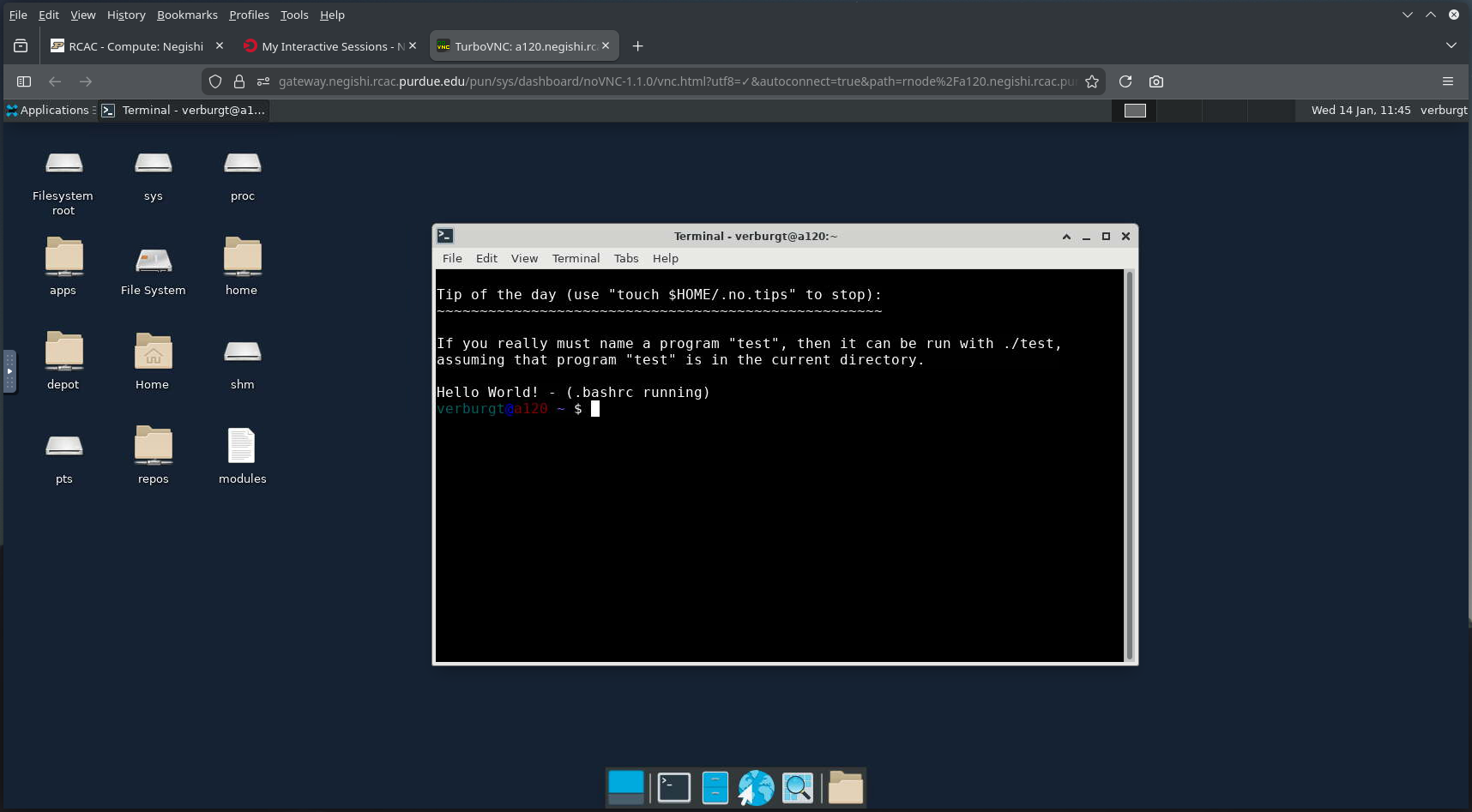
Most notably, we have an "Open OnDemand Desktop" application, which will give you a virtual desktop (running on a cluster backend node) available in your browser. This can be incredibly useful if you need to run graphical applications on RCAC, which don't run well over SSH on the command line.
Job Monitoring and Cancelling
You can use the squeue program to list currently scheduled (pending and running) jobs. By default it will show all jobs from all users on the cluster, which leads to a lot of output. You can limit this to just your jobs with the --me flag:
R for running, PD for pending, and CG for cancelling), as well as the current run time.
To learn more about the parameters of a single job, you can use the jobinfo program. To use jobinfo, the command would be jobinfo JOB_ID, where the JOB_ID is replaced with the job ID mentioned above (which you can also check with the squeue program).
jobenv, jobcmd, and jobscript programs that tell you more information about the job as it was submitted.
Note
These four commands: jobinfo, jobenv, jobcmd, and jobscript are all RCAC-specific. It is not guaranteed that other HPC centers will have these programs implemented.
To cancel a job, use the scancel program. It used by running scancel JOB_ID, where JOB_ID is replaced with the job ID mentioned before.
Warning
Cancelling an application this way isn't very "nice", in that it immediately stops everything and can cause problems if in the middle of file operations.
Good citizenship
Last, but not least, there are four main points to touch on about good citizenship on HPC resources:
- Do not request for excessive resources knowingly (don't ask for a large memory node if it's not needed)
- Do not abuse file systems (heavy I/O for
/depotspace, use/scratchinstead) - Do not submit lots of tiny jobs, instead use the pilot-job pattern with a workflow tool
- We'll tak about this in Week 4: Workload Management.
- Do not submit jobs and "camp" (don't submit a GPU job from the Gateway for 24 hours so it's ready for you in the afternoon and then forget about it)
Next section: File Storage and Transfer