Setting up for the workshop
In this workshop we will be learning about both UNIX systems and how to use Purdue's HPC clusters. For the UNIX portions, you can either use your own computer, or if you have been granted access to a cluster, you can use that cluster as your UNIX system. In the next section, we will discuss how to get onto the clusters if you have already been granted access through your research group.
For those of you who do not have cluster access currently, we can use your local computer as a UNIX system, but you won't be able to try all the Slurm cluster commands that we will go over in weeks 2 and 4.
For Mac and Linux users, your computer is already a UNIX system, so there's no need to download anything extra to make sure we can run the UNIX commands.
Linux
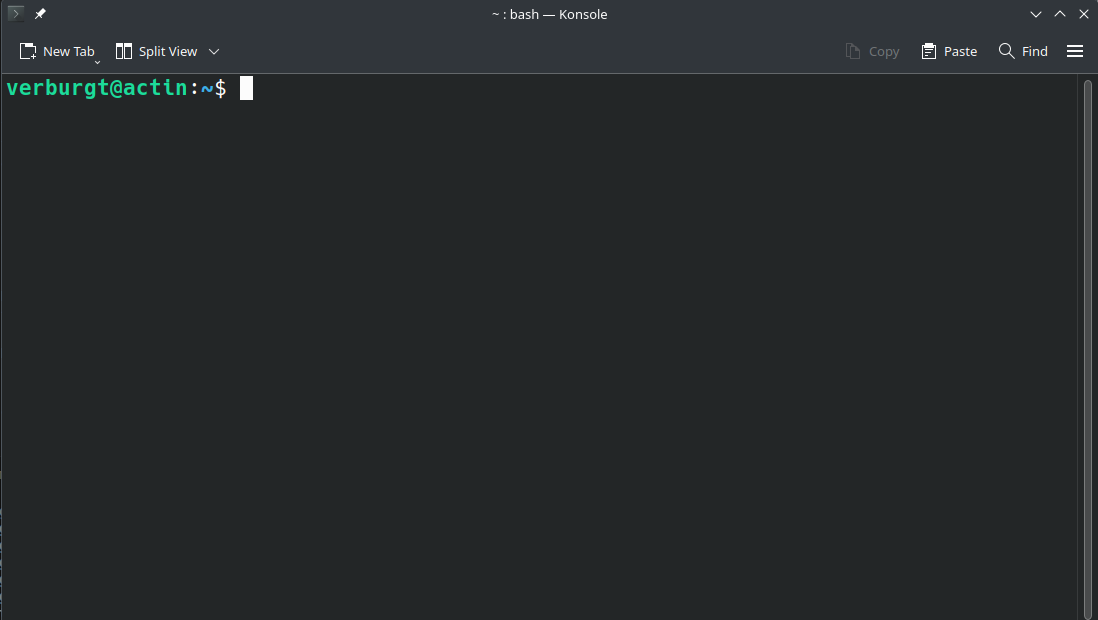
Linux users can open up Gnome
Terminal or KDE Konsole or xterm,
which can be found via the applications
menu or the search bar.
Linux computers, by default, use
Bash as their shell, but if you've
changed the default, you can open
a terminal and type bash, then
hit enter to make sure you're using
the correct shell.
Mac
Mac users can run the Terminal
program to open up a shell. By default, the shell is likely zsh. Then type
bash and hit enter to make sure you
are using the correct shell.
Windows
Windows computers are not UNIX-based, and the default command prompt or Powershell will NOT work!
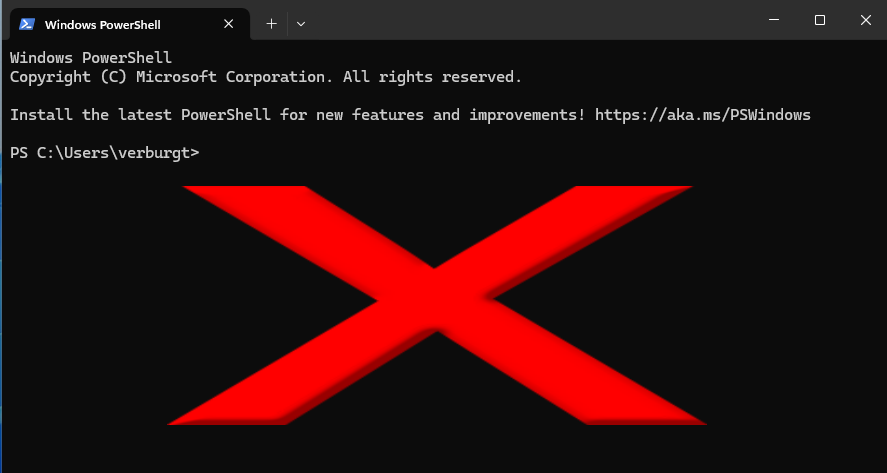
We will need to install extra software on Windows to ensure that we can run the UNIX commands on your computer:
- The easiest option for a UNIX-like terminal on Windows is called
Git for Windows and will allow
you to use a UNIX shell called Bash
(which we will talk about later).
- Instructions on how to download and install Git for Windows can be found here: Installation instructions. Just make sure to click to the tabs that say Windows and Git for Windows.
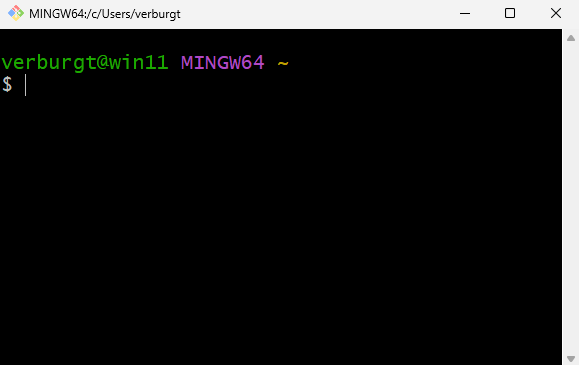
- Once Git for Windows is installed,
you can open a terminal by running
the program Git Bash from the Windows
start menu.
- Microsoft has also Developed the "Windows Subsystem for Linux" (WSL) which allows you to run Ubuntu Linux within Windows.
- Installation Instructions can be found here.
- Installation Instructions can be found here.
Next section: Access