File storage and transfers
There are many places you can store your files to access them on the clusters:
-
Local (mountable)
/home/depot/scratch/tmp
-
Indirect access
Fortress(HPSS tape archive)Ceph(S3 object storage)
-
Cloud
- Box.com / REED
- GitHub (github.itap.purdue.edu)
-
Libraries
- PURR - research data repository providing data management, DOI, citation tracking
Of these, only the Local and Indirect access options are directly available/mounted onto the clusters. The Cloud and Libraries are good places to store your files, but require more steps to get onto the clusters.
Local Storage
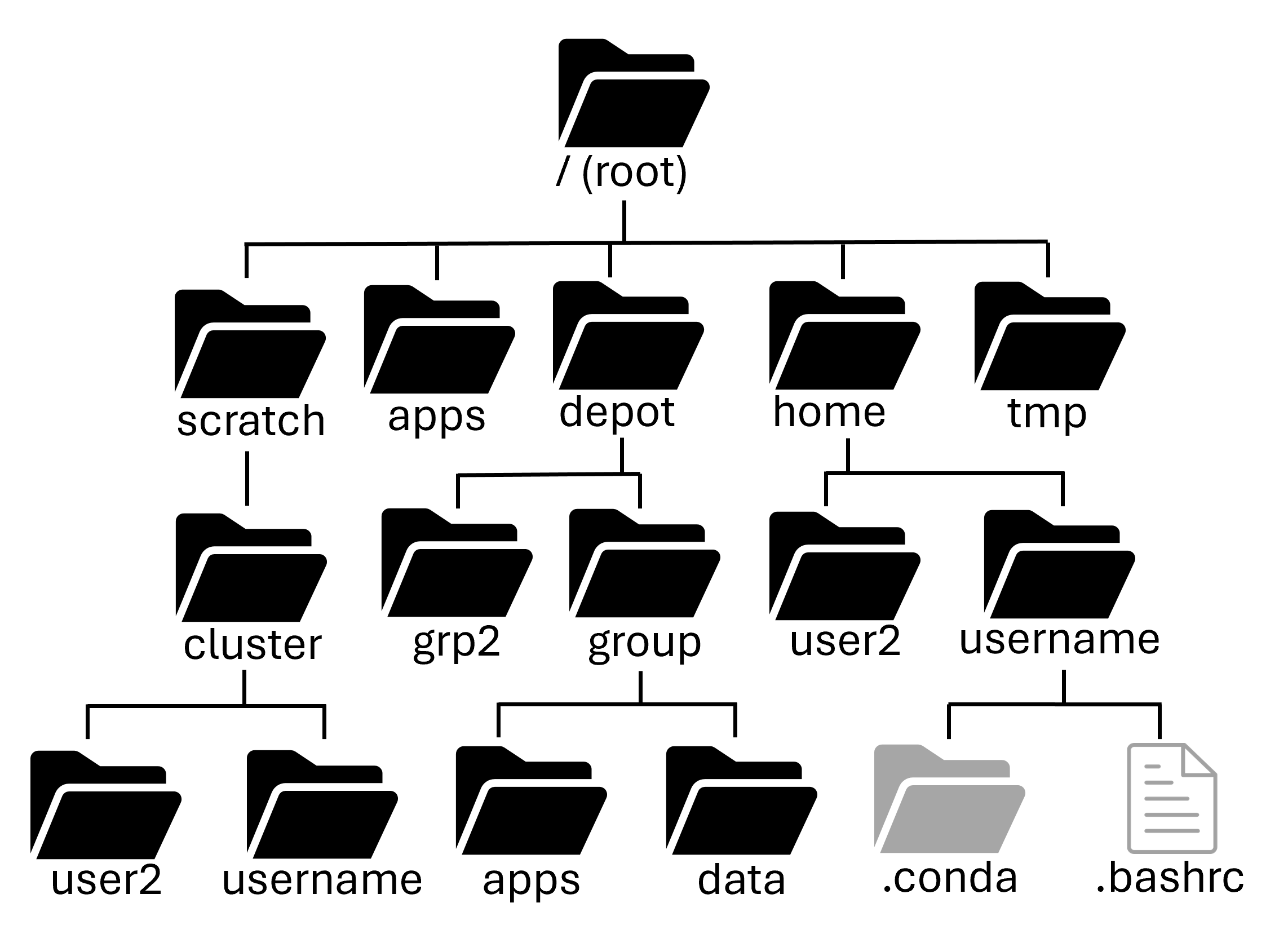
Home directory: $HOME
Path: /home/username
Your home directory is small (only 25GB), it has mild performance and is cluster specific (it is shared between nodes of a cluster, but not across clusters). It is also mountable on your local computer as a network drive.
Home directories are housed on redundant hardware, are never purged and are protected by snapshots. They are private to each user (they cannot be accessed by other members of your research group)
Home directories are good for personal configuration files, software installation, scripts, etc. You can also store personal data and job files, if they're small enough. It's ok to run jobs against your home directory, but it's not good for heavy I/O scenarios. In short, it's good for medium to long term storage.
Depot directory
Path: /depot/<group_name>
The Data Depot is a group directory mounted on all Purdue community clusters. It is larger than your home directory (100GB free trial) and PI's can purchase additional space at $47/TB/year. It has reasonable performance with redundant hardware that is never purged and is protected by snapshots.
It is mounted on all clusters, so you see the same data no matter which cluster you're using. You can also mount it as a network drive on your local computer.
It is owned by the PI of the group and is shared by group members. It also offers fine-grained access controls.
Importantly, you can use the data depot without any cluster purchase, if you need somewhere persistent to store your data.
The Data Depot is good for shared configuration files, software installation, scripts, etc. You can store critical research data here to be shared amongst your group. It's ok to run jobs against but it's not good for intensive I/O scenarios. It is good for medium to long term storage.
Scratch directory: $CLUSTER_SCRATCH, $SCRATCH, or $RCAC_SCRATCH
Path: /scratch/<cluster>/username
Your scratch directory is a high-performance directory on each cluster. It is huge (100+TB), however it does have a file number limit (in the millions), so make sure to not have a bunch of tiny files.
The scratch system is internally redundant, so you don't have to worry about hardware failure corrupting your data, but there are no snapshots, so files are not recoverable if deleted. It is also regularly purged of older files.
Scratch directories are good for intermediate to massive data I/O, so are perfect for data intensive jobs. It is NOT for the primary copy of your data or software. And it is NOT for long-term storage. It is only for short-term storage of intermediate results.
Warning
Scratch directories are regularly purged of old data. If a file is not accessed within 60 days (30 days on Bell), it will be staged for purging. RCAC sends courtesy Email warnings to users when files are staged for purging, but you should not rely on these Emails. Please be proactive in backing up any valuable data or results you have stored in scratch.
You can use the purgelist command to tell you which files in your /scratch directory are staged to be purged.
Temporary directory
Path: /tmp
There is a node-local /tmp directory on Purdue's community clusters. It is moderately large (200+GB) with good performance. However, there is zero redundancy and files are purged after your job on the node ends. There are no snapshots of data in the /tmp directory.
It is node-local, i.e. each node of the cluster has its own /tmp that is world-readable (and sort of writable). It is what researchers used to use before the Scratch directory.
It is good for node-local caching of data and files. It is NOT for valuable data or software and NOT for long-term storage. It is rarely needed, but priceless when you do need it. Unless you understand the tradeoffs, consider just using your Scratch directory.
Checking Access
Reminder that you can use the myquota command to check your current usage on local storage locations!
| Storage | Location | Purpose | Availability | Capacity | Backed up? |
|---|---|---|---|---|---|
| Home | /home/username |
Backed up personal storage | Shared across all nodes | 25 GB | Yes |
| Scratch | /scratch/cluster/username |
Large temporary files - Purged Regularly | Shared across all nodes | 200 TB, 2M Files | No |
| Depot | /depot/labname |
Files and programs for your lab | Shared across all nodes AND across clusters | 100+ GB | Yes |
| temp | /tmp |
temporary files | Node specific | 200+ GB | No |
Indirect Access
Fortress (HPSS tape archive)
Path:/home/username, /group/<group-name>
Fortress is our IBM HPSS system for long-term storage. It is huge (25PB) and is free up to a point. It's a tape system with a robotic arm. Its disk cache makes writes fast, but reads slow.
It is replicated, redundant, and never purged. It is accessible from all clusters with specialized command-line tools, as well as mountable as a network drive for external machines. All Data Depot groups get a /group Fortress directory.
Fortress is good for backing up (archiving) critical research data. It is good at storing large files NOT for many small files. It is NOT for running jobs against. It is made as a slow, long-term storage for your critical data.
To access Fortress and move files to/from it,
use the hsi/htar programs.
Note
The HSI interface is not a true shell and only allows limited commands. It also doesn't allow for tab-completion.
We can use hsi to navigate the tape archive system. We can create, remove, rename, and directories "like normal". While in the hsi interface, use the help program for a listing of commands and what they do. Outside of the hsi interface, you can run hsi help to get the same information.
Use put and get to copy data to and from the tape archive. Let's add our directory to the archive and try to get it back.
Note
Without specifying otherwise, we are operating with respect to our home directories (on both archive and cluster).
To exit the hsi interface, use the exit command.
You can also use hsi commands in one shot without logging in first. Try removing the example-data directory from the cluster and then bringing it back with hsi get. To be extra safe, we will rename it here instead of actually deleting the directory and its contents.
Warning
Be sure you already have the data on Fortress before deleting it from your home directory!
Instead of using hsi command to get and put files, we shouldn't store all these smaller files separately. The tape archive is most efficient with large archive formats and has special capabilities with the .tar format.
Transferring data to and from Fortress
You can bundle and send the whole directory in one stream with the htar program.:
In the example above, the options to the htar program are similar to the tar program. Except, we don't need to compress it using gzip (with the z flag).
Example
Lets return to our Python job that we created in week 2, and make a few changes to it so our results get archived automatically. In our job script, we can use certain Slurm options to specify a path for the console output files in our job. These options are -o/--output (for stdout) and -e/--error (for stderr).
So, our example job submission script might look like this:
Once this runs we can check to see the status of the job with squeue --me. Once it finishes running, we can check the output file (example.out) to make sure it does what we expect. Remember that All the text that would normally print to the terminal (stdout and stderr) will instead go into the slurm log!
Notice that this script doesn't contain our python output, because we redirected that output to a file (> results.out) and then archived the file with htar. There's two places we need to check for the output of our job. First is the scratch directory that the python output file was created in:
Then, we also need to check that our example.tar file was created on Fortress:
Transferring to Fortress via Globus
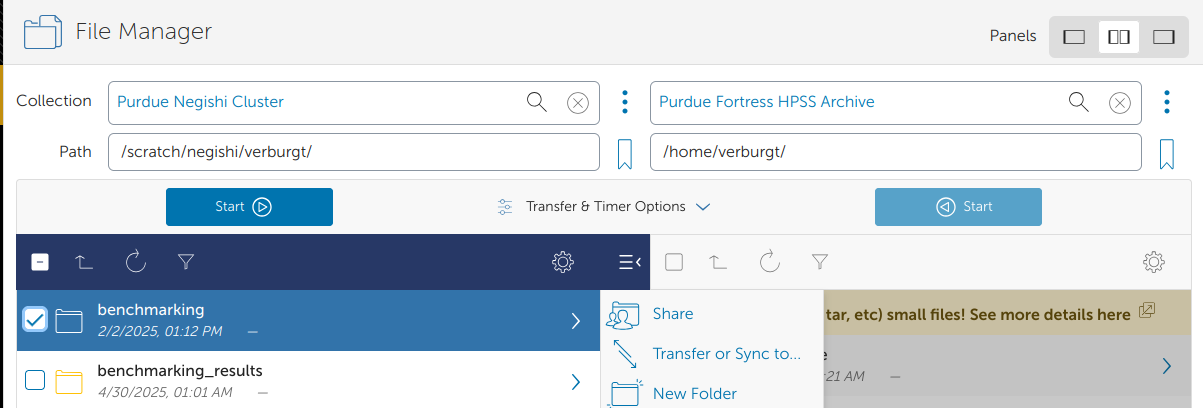
For a more interactive way to transfer data to Fortress, you can use our Globus transfer service at https://transfer.rcac.purdue.edu. Just be sure to archive large amounts of files (with zip or tar) before transferring!
Next section: Job History