File storage and transfer
Now that we can get onto the cluster, we want to get our data and files onto it as well.
There are four main areas that you may want to store data/files on:
- Home
- Scratch
- Depot
- Fortress
We will discuss in more detail what each of these areas are in the week 4 section.
For now, we will put everything into our home directories, as that is where we land whenever we log into the clusters.
There are several ways to get data and files onto and off of the clusters:
1) Open OnDemand
2) Globus
3) scp
4) rsync
5) sftp
GUI Methods
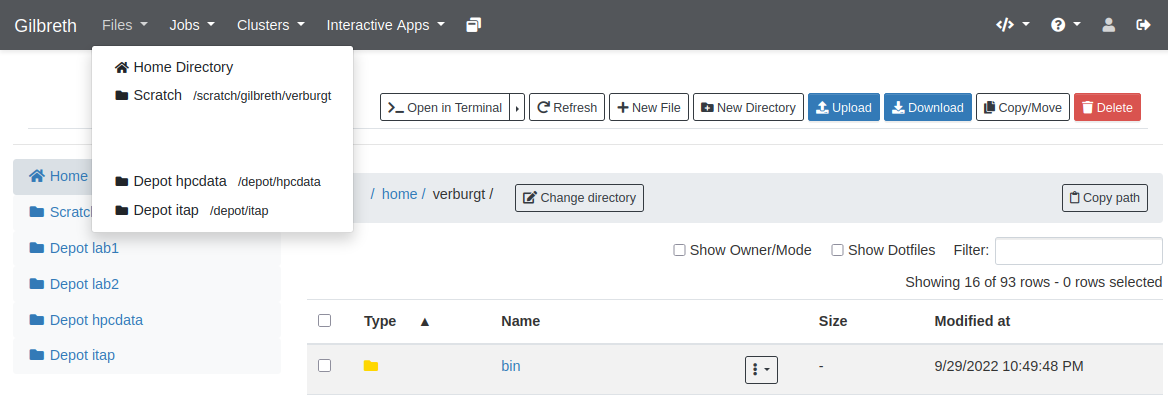
In the files tab of the Open on Demand page, there are upload and download buttons, but they are limited in what they can do. e.g. there is a file size limit of 100 GB to upload and if your connection is flaky at all, you're going to have a bad time.
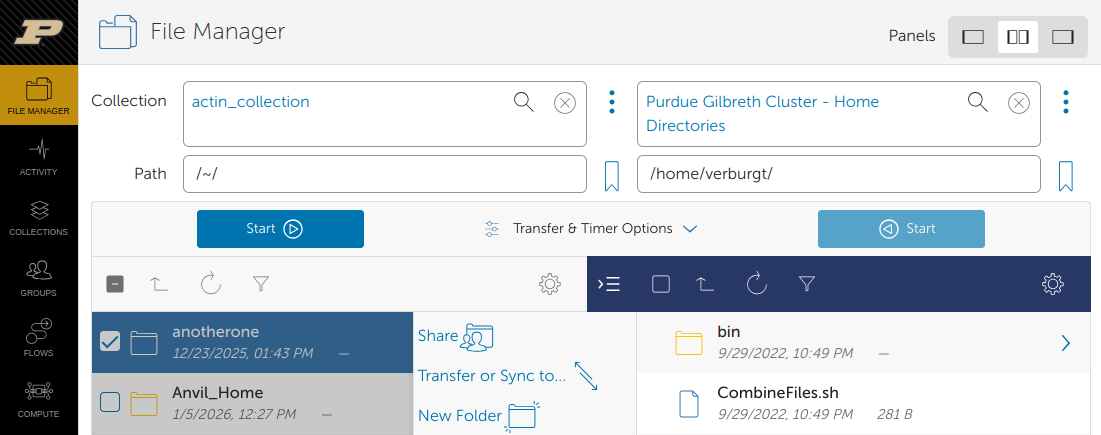
For transferring large data to the cluster, you will want to use the Globus transfer service. If you want to transfer files from your local machine to the cluster, you will need to install the Globus Connect Personal software on your local computer.
From the Globus transfer service, you can select a source and a destination. It will handle the actual transferring of the file(s) for you, resuming if there's network connectivity problems.
Command Based Methods
scp stands for secure copy protocol and is the server version of the cp we saw last week. It needs a source and a destination, but one of them may be a server.
Copying to a cluster:
rsync is similar to scp, but much more fully-featured. It is especially useful for transferring directories, syncing changed files, and resuming interrupted transfers.
Copying a file to a cluster:
Copying a file from a cluster:
Copying a directory to a cluster:
Copying a directory from a cluster:
A few common options are:
-afor archive mode, which preserves file structure, permissions, and timestamps-vfor verbose, which shows what is being transferred-hfor human-readable file sizes--progressto show transfer progress--partialto keep partially transferred files if a transfer is interrupted
sftp stands for secure file transfer protocol is a
reliable way to transfer files between the cluster and
another computer.
Essentially, sftp starts a file transfer shell on a
remote computer. Simple use the command sftp USERNAME@CLUSTER.rcac.purdue.edu
to start the file transfer session. After logging in,
use the get and put programs to transfer to and from
the cluster you are connected to:
sftp, the transferring on the side of your local computer will be relative to the directory you were in when you initiated the sftp session.
Helpful RCAC programs for file management
The following two programs can be helpful for you as you navigate using the clusters. As a note, these are RCAC specific programs, meaning that we implemented these and other supercomputers may not have them.
myquota
myquota is run without any arguments and tells you
where you have access to read and write files. It also
tells you what the space quotas are for each of those
spaces and how much you have used already. We'll talk more about filesystems in Week 4
flost
RCAC regularly backs up data in home and depot spaces, so that if something is accidentally deleted or overwritten, it can be recovered (if it's been there sufficiently long). We have daily, weekly, and monthly snapshots for varying amounts of time. If you lost something in your scratch space, we don't have backups of those, so you're out of luck.
Continue to Week 3