Managing files and directories
Now that we can create files from the output of processes, we should learn some file management techniques. In this section, we will go over three main topics surrounding file management:
1) Archive formats for managing files and data
2) Data compression programs
3) Finding files
Archiving
To archive a file or directory means to bundle those files up into a single archive file.
The zip and tar programs can create
archive files of whole directories.
They differ in that tar compresses the
whole output together instead of
individually compressing files within the
archive.
TAR (Tape ARchive)
tar stands for "Tape ARchive" format,
because tape archives do better with one
big file instead of many, smaller files. We will learn more on how to archive data at RCAC in Week 4.
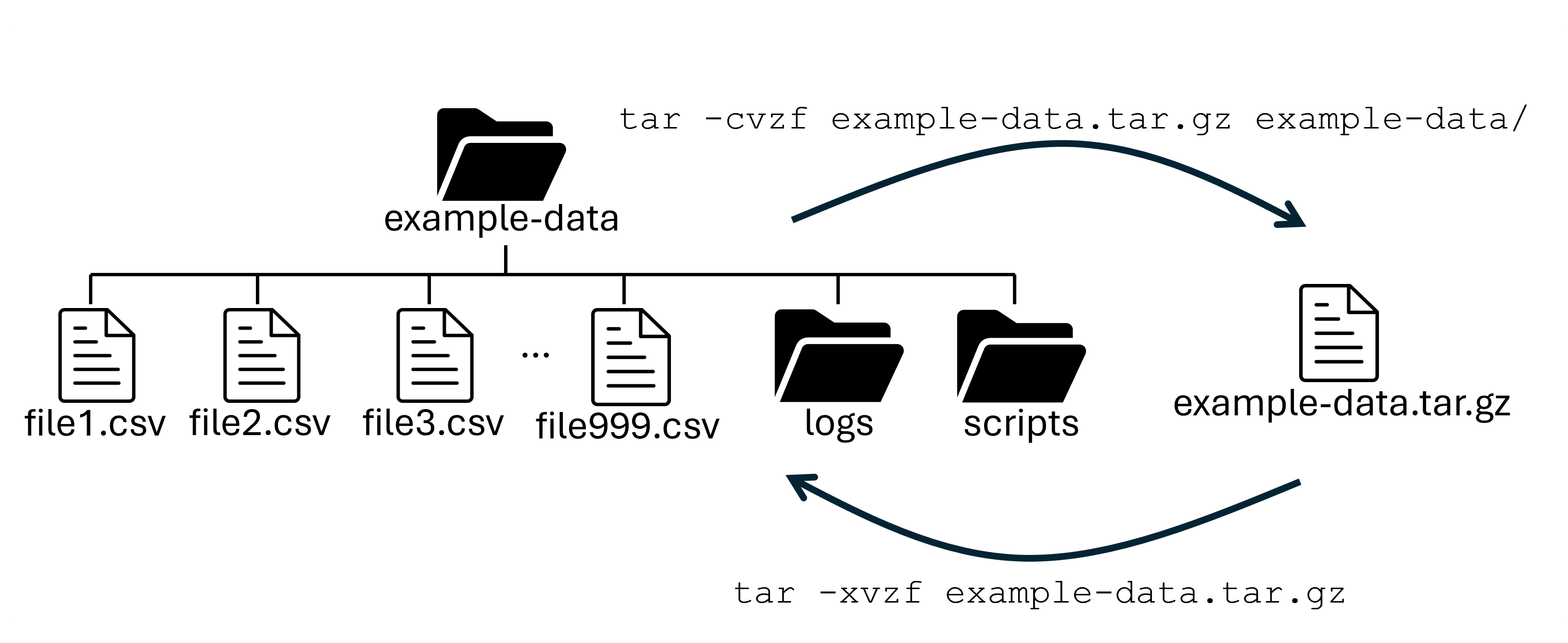
To package a directory into a single, compressed file, you would use the following command:
tar program and two arguments. The
options are:
c- createv- verbosez- gzip (compress)f- file named the following.
The first argument (example-data.tar.gz) is actually an extension of the f option, which tells tar what we want to name the archive. The second (and following) argument(s) tells tar what we want to archive.
To undo the archiving, simply swap the c
option for the x option (which stands for
extract):
Zip
The zip program is simpler to use, but
often people prefer tar over zip.
File name conventions
As mentioned in earlier sections, file name extensions are usually meaningless in UNIX systems. However it is common to use .tar.gz to denote gzip-compressed tar archive files and .zip to denote archive files made with the zip program.
Compression
Compressing a file is to take it and make it smaller, but unreadable (by humans). There are three main programs used to compress individual files and streams and they all have nearly identical usage and behavior. The three are:
gzip(fast, very common)bzip2(usually compresses smaller than gzip, but slower)xz(often the smallest files, but slowest / most CPU-heavy)
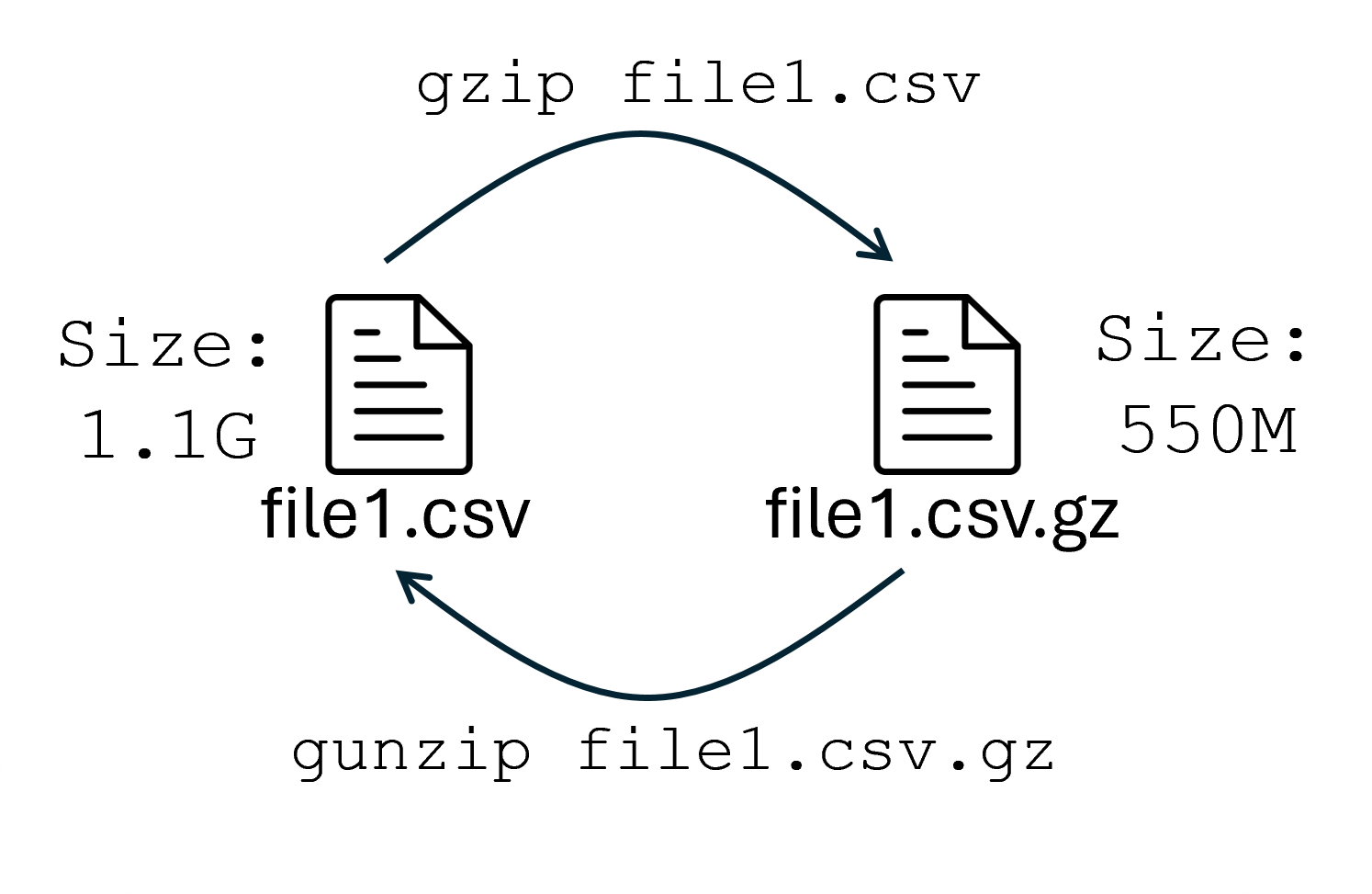
gzip (.gz)
bzip2 (.bz2)
xz (.xz)
Compressed data from these programs can be stacked safely and decompressed in concatenated form.
Finding Files
When you have a lot of files, it can be useful
to have a program to find files that match a
pattern. To do this, use the find program.
The first argument to find that we provided was the folder we
want to search in, in this case our home (~) directory.
The -type option narrows down
what kind of listing the command will find.
Putting f here narrows the search to just
find regular files.
The -name option filters the search to only list the files
and such that follow the pattern given, in
this case, everything that ends in .txt (Remember that * is a wildcard that matches any number of any characters!).
This command would find all the .txt that we have in our home directory. To further filter down the file(s) we are looking for, we can pipe (|) the contents into a pattern matching program called grep. grep (without any options) will filter the stdin to keep only lines that match the provided pattern(example-data")
Useful Programs
| Program | Action |
|---|---|
zip/unzip |
Create/extract/update archive of files |
tar |
Create/extract "tape" archive of files |
gzip/gunzip |
Gzip (zlib) compression (most common) |
bzip2/bunzip2 |
Bzip compression |
xz/unxz |
XZ (LZMA) compression |
find |
Search for files |
Continue to Week 4